If you are using NextGen's native document storage, you can modify and manage files directly within your system. The system creates a new version tagged with a timestamp and the user’s name every time a document is edited and saved, maintaining a clear audit trail.
Note:
-
Multiple users can edit the same doc./file at the same time with the changes synchronized between editors.
-
Edits are applied to the same source file, so the Client Portal and other areas stay in sync with the latest version.
Supported file formats:
- .DOCX — Word documents
- .XLSX — Spreadsheets
- .PDF — With annotation support
Edit a Document
From Matter Details
To edit a document:
- From the left navigation panel, click Matters.
- On the Matters screen, double-click a matter or single-click it, click on the three dots to the far right of the row and from the drop-down, click View.
- From the tabs atop the Matters Summary section, click Documents.
- In the Documents screen, single-click the applicable subfolder.
The folder's contents display on the screen.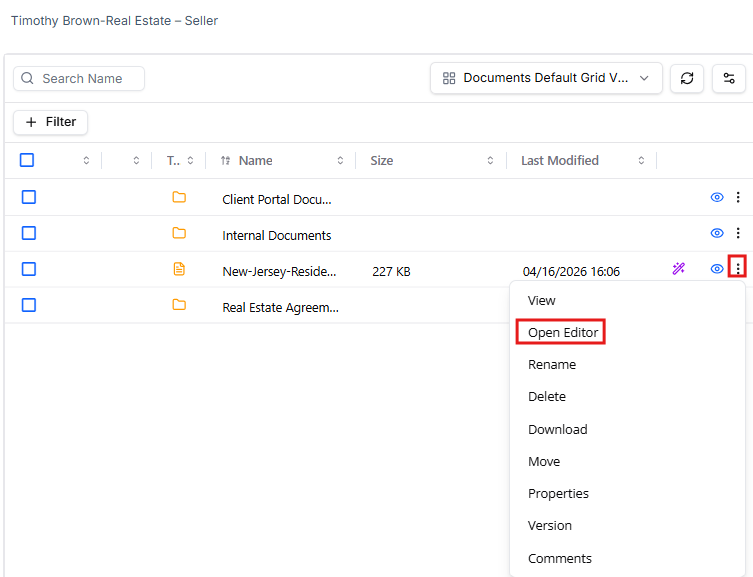
- Select the file, click on the three dots at the end of the row and from the drop-down, click Open Editor.
- The Preview panel opens for a PDF file. Make your changes to the editable fields in the document and in the top right, click Save as New Version.
.DOCX or .XLSX files open in Office Online. Your changes sync back to the matter automatically, and several people can edit the same file at once.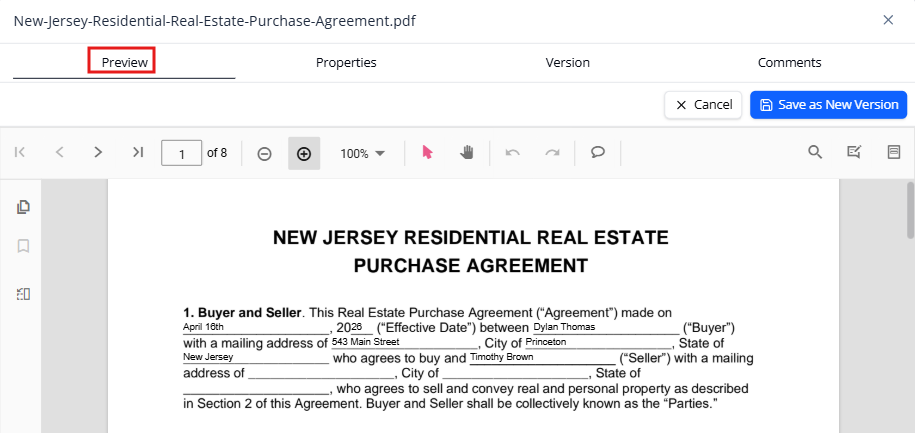
- The new version is saved — you can download it to review or restore a previous version at any time.
From Documents
To edit a document: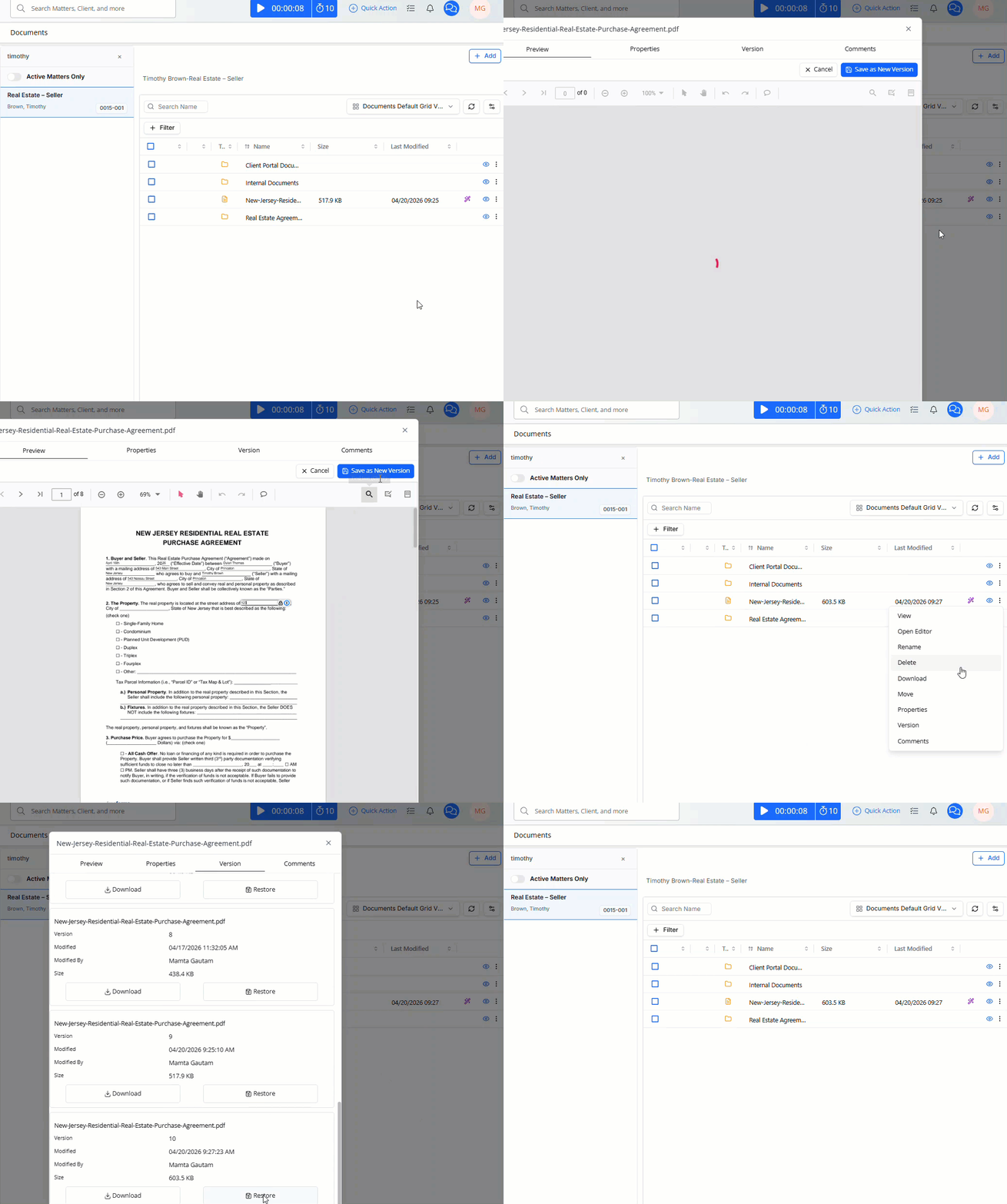
- From the left navigation panel, click Documents.
- On the Documents screen, single-click the applicable matter's folder.
The matter's folder structure displays. - Click the subfolder within which the document is located.
The folder's contents display on the screen. - Select the file, click on the three dots at the end of the row and from the drop-down, click Open Editor.
- The Preview panel opens for a PDF file. Make your changes to the editable fields in the document and in the top right, click Save as New Version.
.DOCX or .XLSX files open in Office Online. Your changes sync back to the matter automatically, and several people can edit the same file at once.
- The system saves a new version of the document, which you can download to review, or if desired, restore a previous version.
View and Close Your Active Editing Sessions
To close your active editing sessions:
- From the left navigation panel, click Documents.
- On the Documents screen, single-click the applicable matter’s folder.
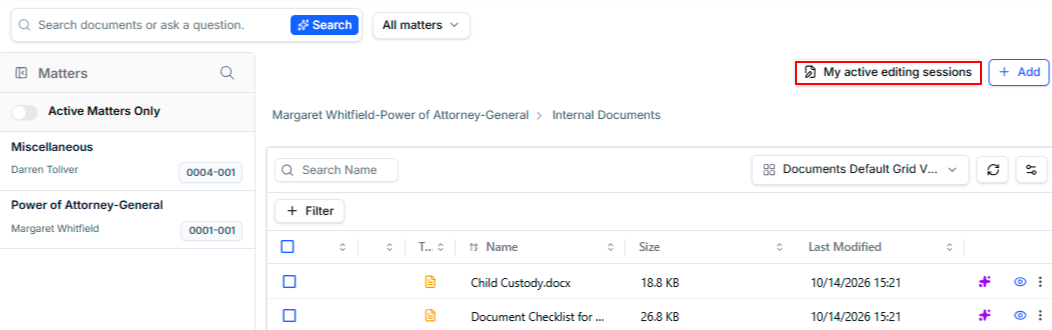
- In the top-right corner, to the left of + Add, click My active editing sessions.
The My active editing sessions window displays each open document with its folder path and when you opened it.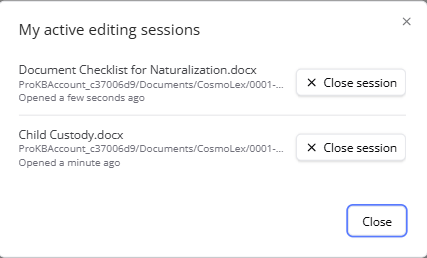
- To end a session, click Close session next to the document.
Only that session ends, and your changes are kept. - Click Close to close the window.
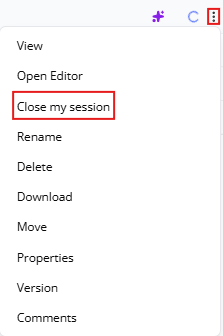
Tip: You can also close an active editing session by clicking the document’s three-dot menu and selecting Close my session.
Restore a Previous Version
From Matter Details
To restore a previous version of a document:
- From the left navigation panel, click Matters.
- On the Matters screen, double-click a matter or single-click it, click on the three dots to the far right of the row and from the drop-down, click View.
- From the tabs atop the Matters Summary section, click Documents.
- In the Documents screen, single-click the applicable subfolder.
The folder's contents display on the screen.
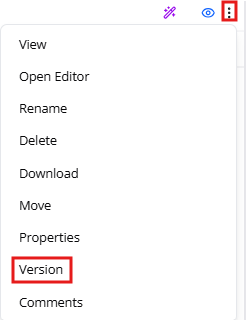
- Select the file, click on the three dots at the end of the row and from the drop-down, click Version.
- The Version panel opens.
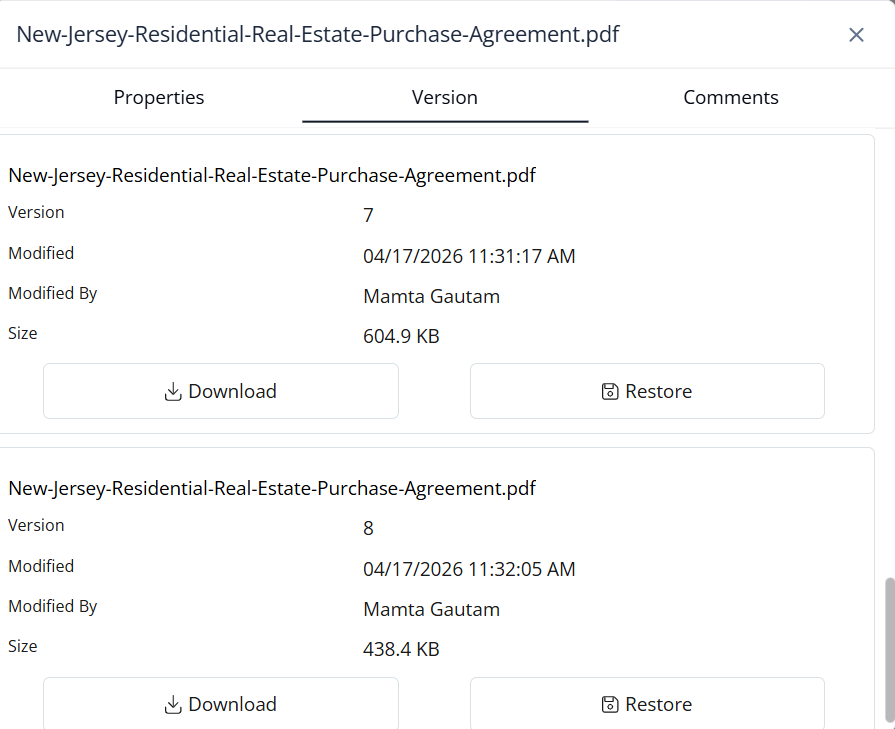
- Scroll through the versions of the document to make your choice and click Restore.
The selected version is restored — you can download it to review or restore a previous version at any time.
From Documents
To edit a document:
- From the left navigation panel, click Documents.
- On the Documents screen, single-click the applicable matter's folder.
The matter's folder structure displays. - Click the subfolder within which the document is located.
The folder's contents display on the right half of the screen. - Select the file, click on the three dots at the end of the row and from the drop-down, click Version.
- The Version panel opens.
- Scroll through the versions of the document to make your choice and click Restore.
The selected version is restored — you can download it to review or restore a previous version at any time.